MEDIA STORAGE
How a completed job moves from active storage to cold storage and how to pull it back when you need it.
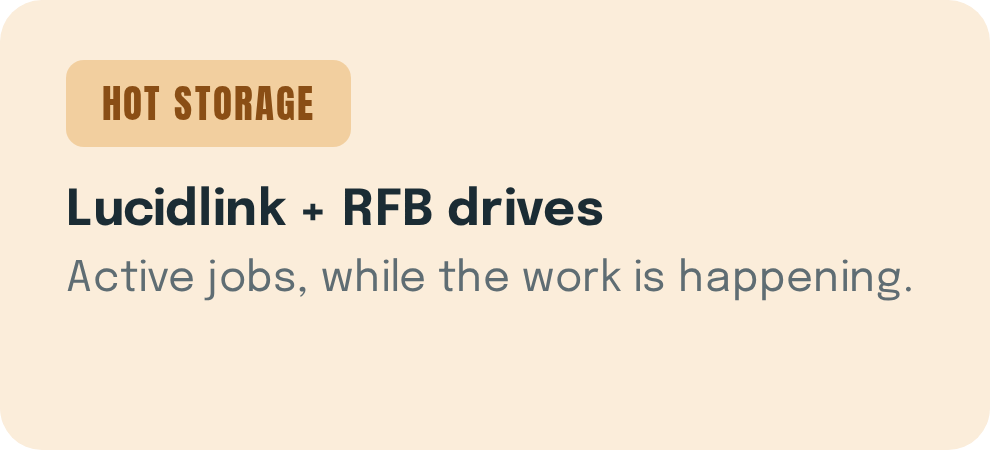
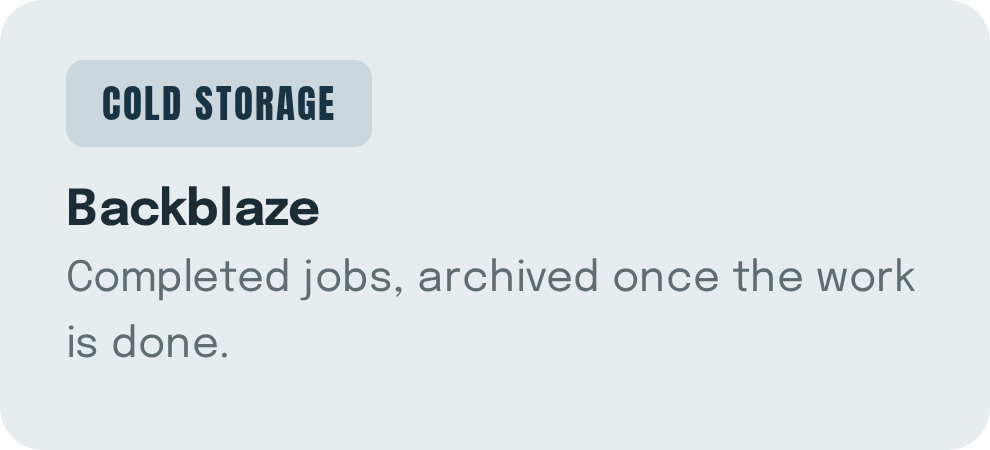
WHILE A JOB IS ACTIVE
- RFB drives (RawFootageBackup 1 and 2) hold the raw media backup. Whether footage arrives on a hard drive or by web link, the raw footage lives on an RFB.
- LucidLink holds everything else for the life of the job: proxies, graphics, project files, anything relevant except the raw or camera-original footage.
- Editors back up job folders to local hard drives while the edit is active.
- Audio and finish work on independent systems. When the job wraps, their assets are collected for cold storage.
When a job is complete, the LucidLink assets are combined with the raw footage, files are collected from audio and finishing, and the entire jobs is uploaded to Backblaze for cold storage.
TOOLS WE USE
- GoodSync moves jobs from hot to cold storage. It works at the folder-level.
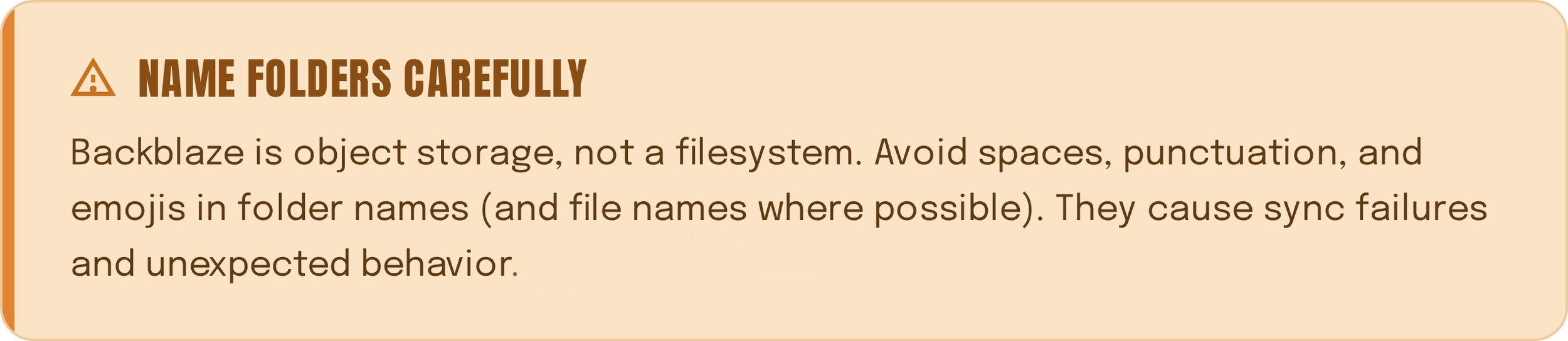
- Cyberduck gives the cleanest, most accurate view of Backblaze files. Use it to drill into the file structure and identify the exact folder you need. It’s drag-and-drop transfers are unreliable, so use it to look, not to move.
- Mountain Duck Is Retired Do not use it.
MIGRATE FROM HOT TO COLD
Follow this process when a job is completed on LucidLink and ready to go into cold storage. We use GoodSync to manage the migration.
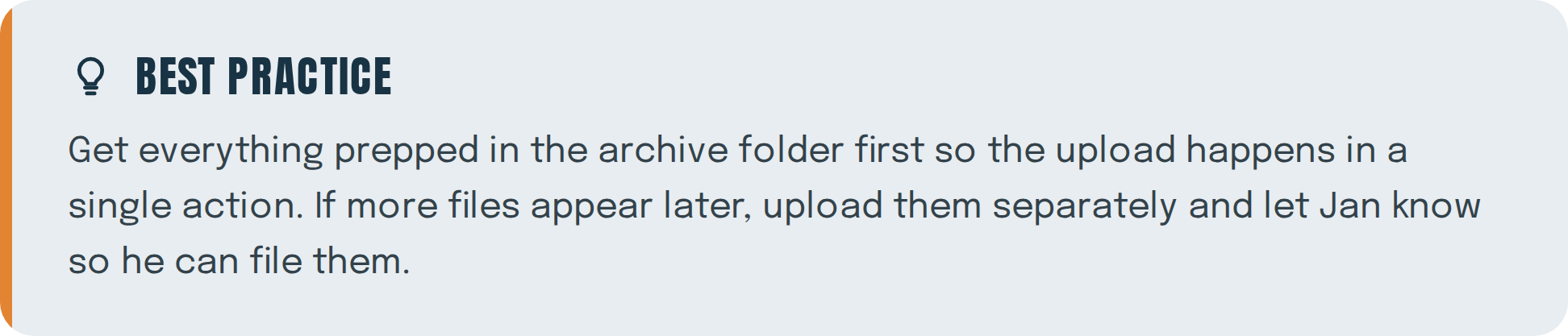

— Make sure everything for the job is in the LucidLink job folder.
— Organize all files into the archive folder template structure.
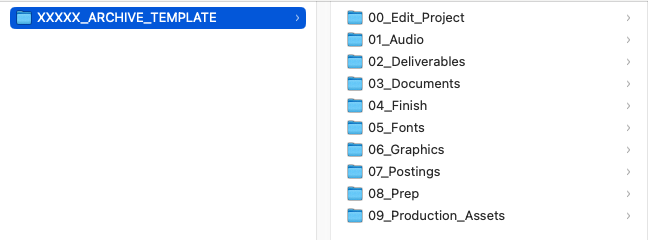
— Download the job folder from LucidLink into the TO_BACKBLAZE folder on the RFB drive.
— Add the raw footage to the footage folder for the job.
— Run renamer on the outer folder to remove spaces from the names, then it is ready for upload.

— Open GoodSync and create a new SYNC job name job#_TOBACKBLAZE
— Toggle AutoRun off so it only runs once.
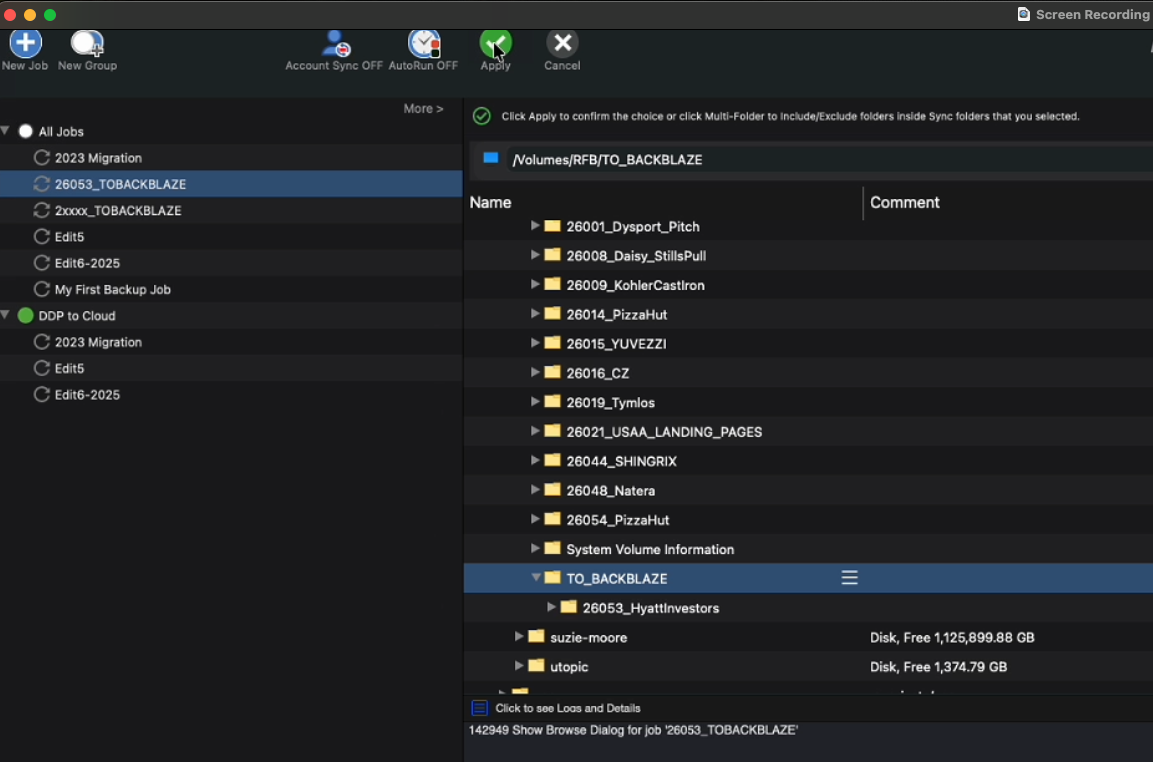
— Run a left to right sync. On the left side, highlight the TO_BACKBLAZE folder.

— On the right side, open the Backblaze folder, twirl down to the-loading-dock and select it.
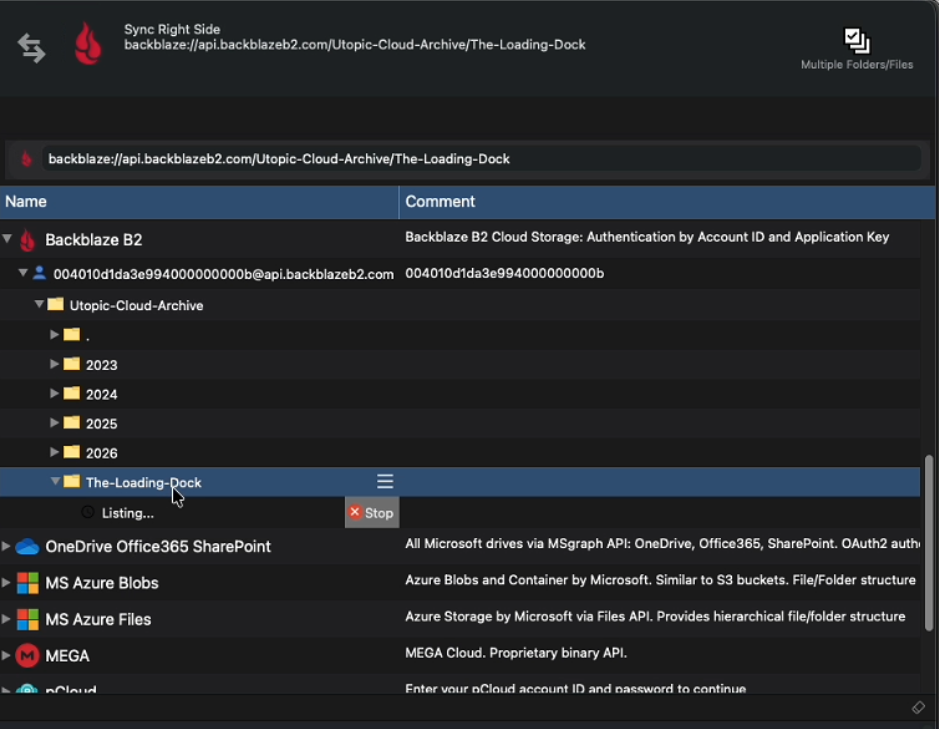
— Choose Apply then Analyze
— If another folder is already in the-loading-dock, right-click it and choose Exclude
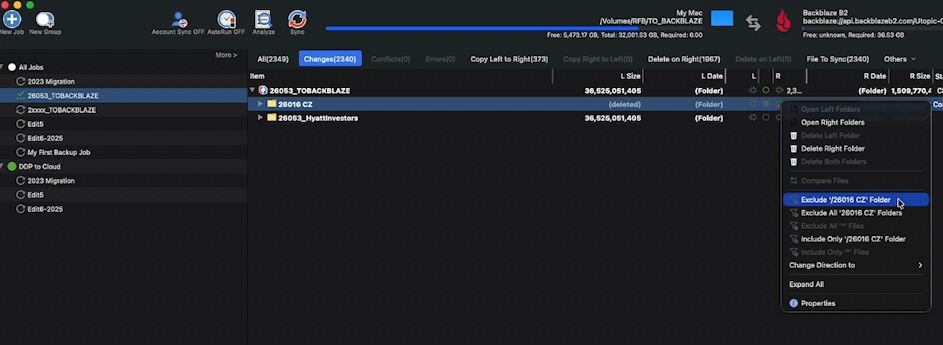
— Click Sync to start the upload.
— Watch progress in the log at the bottom or the progress bar at the top left. On the 400/400 connection, expect about 1TB per 9 hours.
— Text Jan when it complete so he can move the folder from The-Loading-Dock to the correct year folder.
Tutorial video - how to upload to Backblaze

— GoodSync shows folders only, not individual files. To pull specific files, find them in Cyberduck first, then use GoodSync to pull the folder that contains them.
— Download everything into a dedicated FROM_BACKBLAZE folder to keep transfers organized.
Tutorial video - download from Backblaze with GoodSync
Want to know more?
Download a detailed PDF explainer here: